|
|

|

Import general options
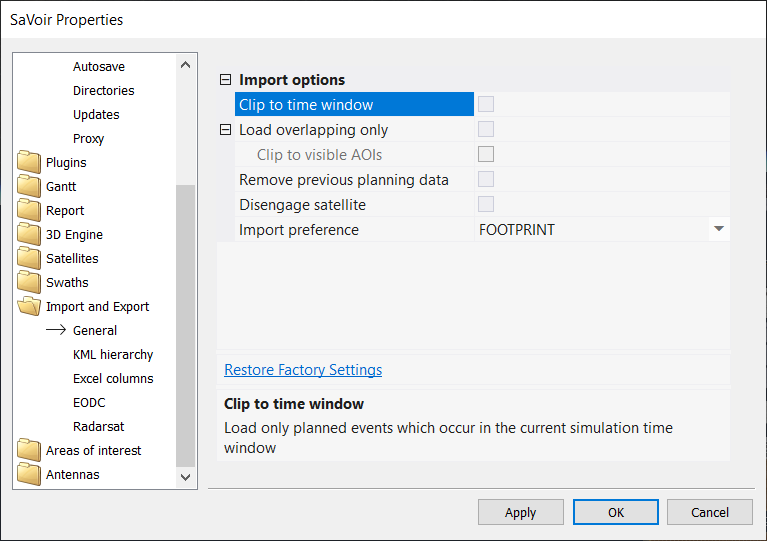
The following options are available:
Clip to time window
When enabled, SaVoir will import only those events which overlap the current simulation window.
When disabled, SaVoir will import all events, and re-dimension the simulation window to include the times of all imported events.
Load overlapping only
When enabled, SaVoir will only import events which overlap the selected areas of interest and will discard all the rest.
Clip to visible AOIs
When enabled, all imported events will be automatically resized by clipping to the selected areas of interest. Events with no overlap with any AOI will be discarded.
Remove previous planning data
When enabled, SaVoir will delete all previous existing planning data. Otherwise, the new planning data will be added to the current plan.
Disengage satellite
When enabled, all satellites that have been updated with new planning data will be disengaged, making them inactive for intersection calculation. This will help to ensure that the ingested plan is not overwritten or dismissed.
Import preference
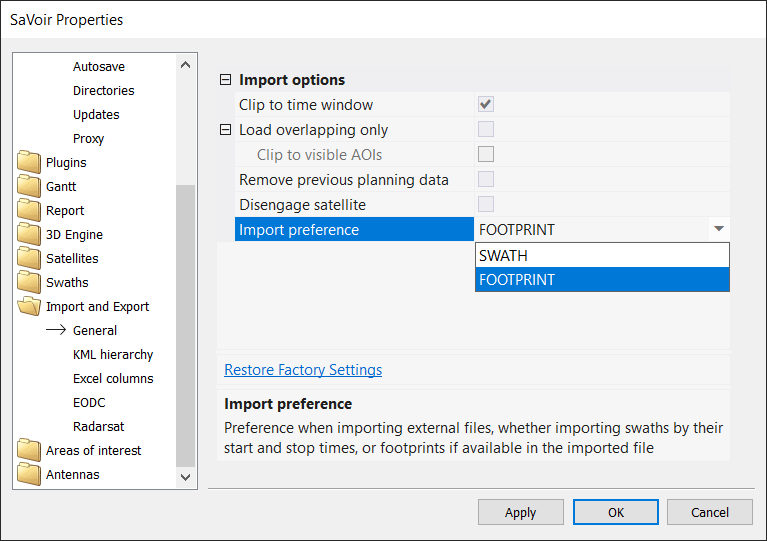
Option SWATH: With this option external files will be imported as in previous SaVoir versions. Each swath will be reconstructed from the start and stop times defined in the file, as follows:
(1) Read the nominal swath times in the file. Relative times will be used if available, otherwise absolute times will be used. Relative times are relative to the closest previous ascending node crossing (ANX). Each relative time is expressed as a couple [absolute orbit number, TANX], where TANX stands for “time span elapsed since previous ANX”. Relative times are more robust in the presence of inaccurate orbit predictions, and will ensure better conservation of the footprint, as opposed to absolute times.
(2) If an input footprint is available in the file, SaVoir will use it to refine the swath times and regenerate the footprint. Regeneration will be according to the current orbit and the sensor field of view. It will do it by calculating a sensor intersection with the input footprint for the swath candidate times. This will result in a refined footprint (slightly different than the input footprint), and swath timings, that will used for all further work in SaVoir .
(3) The input footprint in the file will be discarded.
Option FOOTPRINT(default): With this option the swath ingestion will follow steps (1) and (2) of the SWATH option, but the input footprint will not be discarded.
The input footprint will be stored in the swath and will be used for swath display.
When ingesting files, the user will see input footprints.
When exporting files, the input footprints will be exported.
When propagating the swath to a different time period, the input footprints will be preserved.
The refined footprint will remain hidden in the swath. This is needed to keep consistency overall SaVoir , for user interface management (e.g. timing of mouse when hoovering over the swath)
Any action that modifies the swath shape (resizing, panning, clipping, splitting), will result in the swath falling back to the refined footprint and discard the input footprint.
Multisatellite Swath Planner - © Taitus Software Italia srl All rights reserved- info: support@taitus.it