|
|

|

Historical orbits
Two Line Elements will be downloaded automatically from Space-Track historical archive. You need to obtain a Space-Track free account and then insert you user name and password in Edit / Properties / Satellites / Space - Track, so that SaVoir will know how to log-in and interact with the Space-Track API. This needs to be done only once.
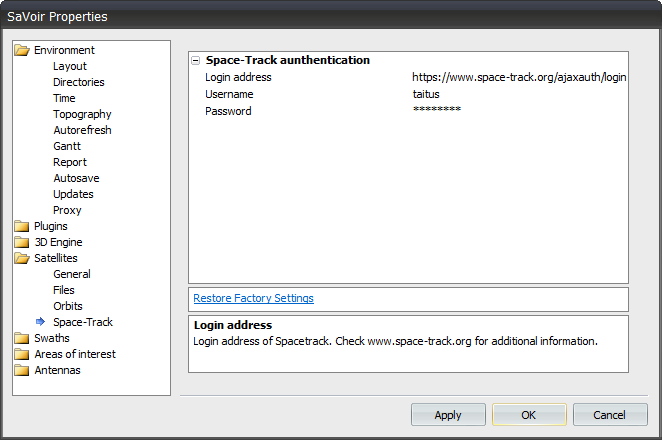
To configure a satellite with Historical data for a given period of time in the past, follow these steps:
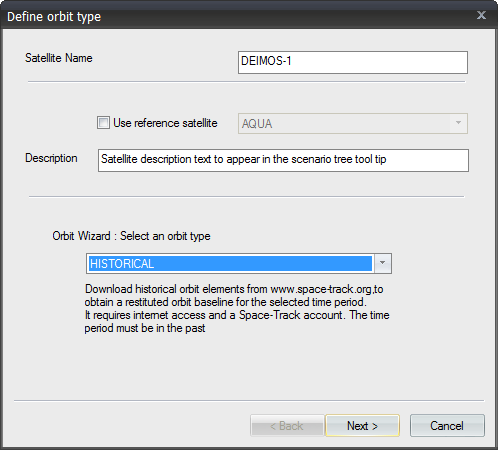
1. Open the Satellite Wizard and define a new orbit, selecting "HISTORICAL" type. Click Next
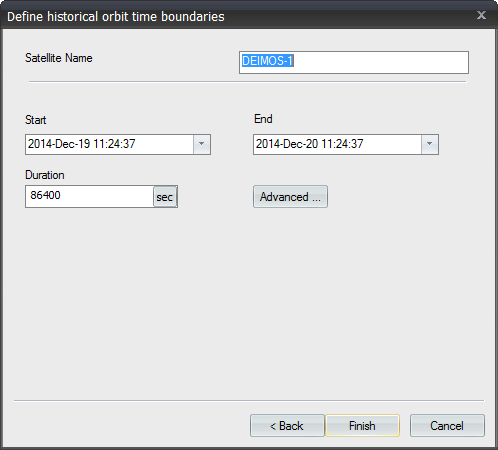
2. Select historical period time boundaries, being careful to select a period of time between launch and current time. Click finish. You may expect some delay, usually few seconds, for downloading the two line element series from Space-Track.
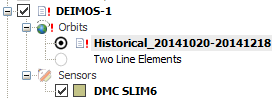
3. Make sure the satellite has been reconfigured with a new orbit within the defined period. The orbit name syntax is "Historical_<BEGIN_DAY>_<END_DAY>". Begin and End day correspond to the Epoch of the first and last TLE retrieved. The orbit will be shown in the satellites tree. A warning sign may appear if the current SaVoir simulation window is not fully inside the Historical orbit period of validity.
Multisatellite Swath Planner - © Taitus Software Italia srl All rights reserved- info: support@taitus.it