|
|

|

Swath editing
In many circumstances users may want to edit one or more swaths of an acquisition plan. SaVoir offers a wide spectrum of tools for editing swaths:-
- Resize
- Pan
- Split
- Split in frames
- Split defining maximum length
- Delete
- Change framing scheme
- Lengthen/shorten to next frame
- Assign colour
All these editing tools can be used on a single swath or collectively on a group of swaths. These tools can be accessed via the contextual menus of individual swaths on the Map pane
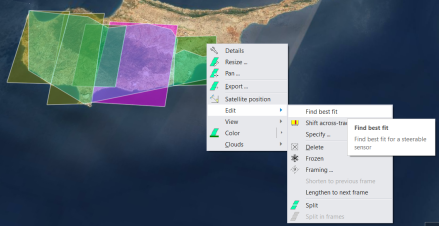
or of a selection of entries in the Swaths pane.
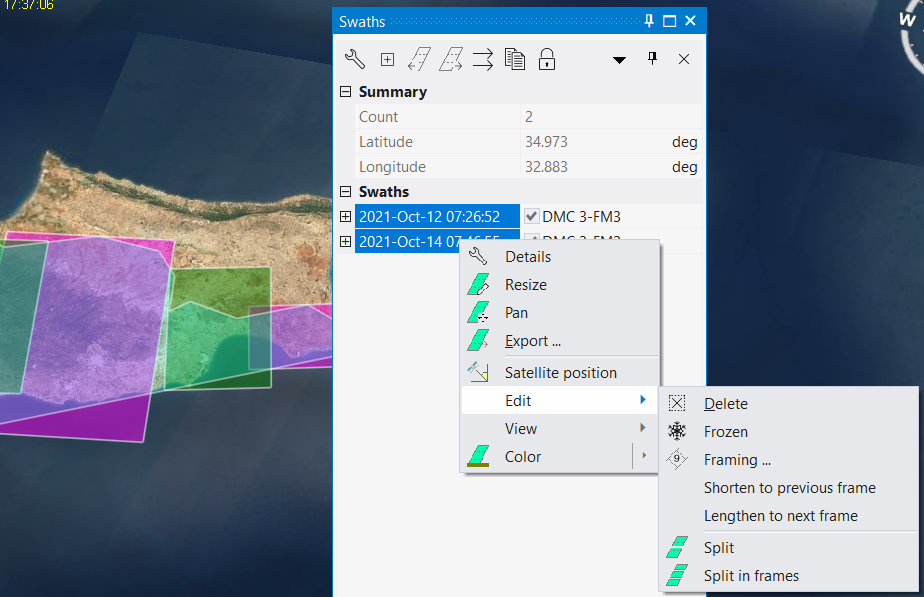
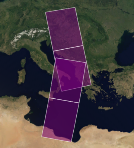
Split
Split the targeted swath(s) in the middle.
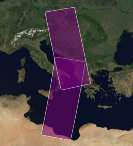 ------>
Split defining maximum length
Split the targeted swath(s) into a set of swaths having a maximum length defined by the user.
Split in frames
Split the targeted swath(s) along the frame boundaries.
Delete
Erase the targeted swath(s).
Lengthen / shorten to next frame
Moves the end boundary of the targeted swath(s) forward or backward and makes it coincide with the previous frame boundary.
Assign colour
Set the fill-colour for the targeted swath(s).
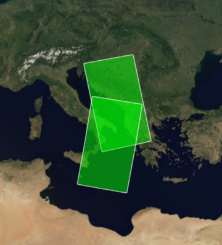
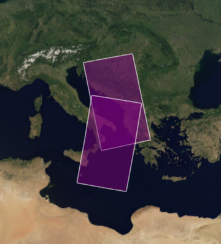 -------->
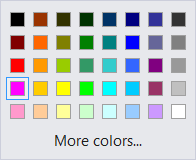
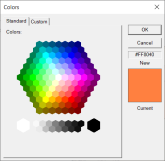
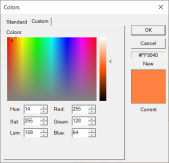
The ability of modifying the colour of swath(s) is provided by a set of standard colour chooser controls allowing either to choose from a list or to enter the values for the RGB channels.
Resize and Pan
Swaths can be resized / panned both individually and collectively.
Resizing consists in:
- Moving one of the two boundaries of the swath(s)
- Assigning a new length to the swath(s) (equivalent to moving the end boundary of the swath(s) in order to match the requested length)
while Panning consists in
- Shifting both start and end boundaries of the swath(s) by the same offset amount.
For individual swaths, the Resize and Pan operations can be accomplished in two ways:
- Interactively, by clicking on and by dragging one boundary or the entire swath on the map
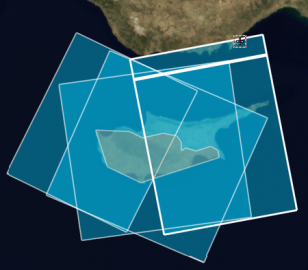
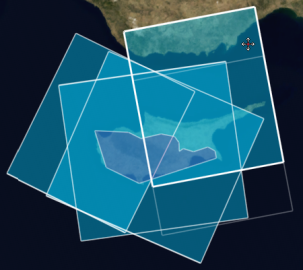
- By providing a new length for the swath or an offset amount and a direction for shifting the swath
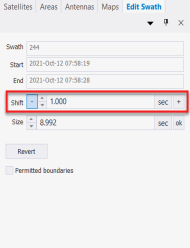
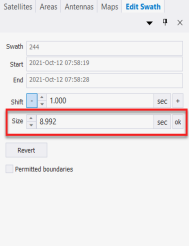
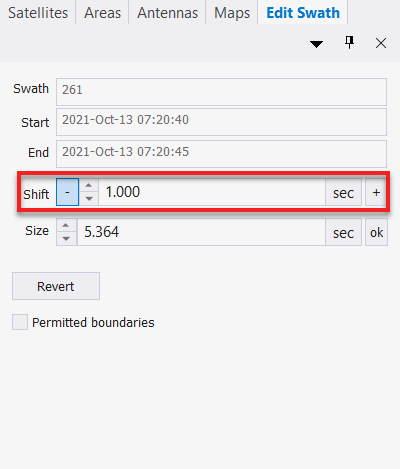
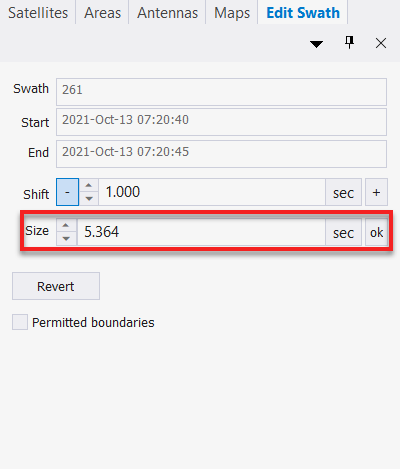
As soon as the command has been invoked, the mouse pointer for the Map pane changes showing that the Swath Edit mode is active and the GUI is ready for interactive editing.
In Swath Edit mode, the Swath Edit pane is shown and through it the user enters the swath length or the amount of the shifting to be performed. The Swath Edit mode is terminated by clicking on an empty region of the map. In the Swath Edit pane, it is possible to provide lengths and offsets as a measure of time (seconds, hours, etc.) or space (metres, kilometres) or as a fraction / multiple of one orbit / frame.
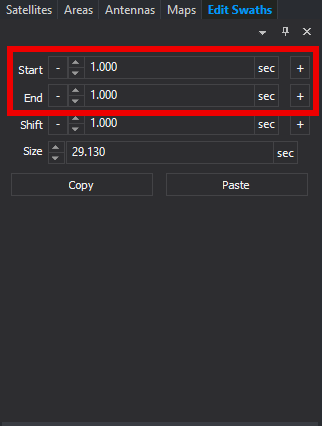
Swaths can also be resized or panned collectively. In such case the operation is carried out in the Swaths Edit pane entirely. In this pane it is possible to move for / backward the start / end boundaries independently by a given amount (Resize operation) or to move both start and end boundaries forward / backward by a given amount (Pan operation).
It is also possible to change collectively the length of swaths by providing a new value (also a Resize operation). In case of a collective Resize based on the length, after the operation, all the swaths assume the same length.
Change framing scheme
There are two ways of changing the framing scheme:
- Modifying the scheme parameters for a specific sensor: the modified framing scheme is applied to all the swaths acquired by the affected sensor.
- Modifying the scheme parameters for one or several swaths : the change remains limited to the targeted swath(s).
In order to change the framing scheme associated with a specific sensor the user navigates in the Satellites side pane to the node representing the specific sensor and then she accesses the framing scheme settings in the Framing tab of the Properties pane.
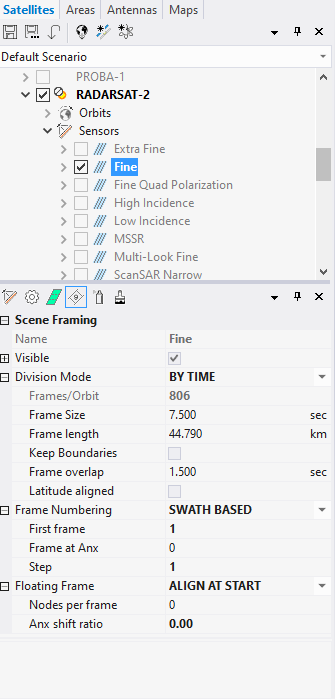
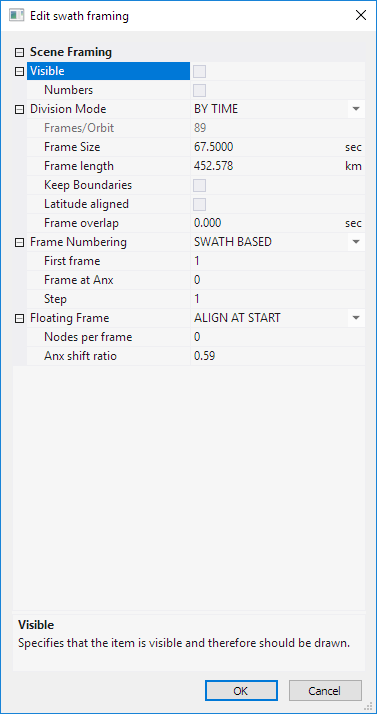
To change the frame scheme for the targeted swath(s) only, the user selects the Edit > Framing command from the contextual menu of the swath(s) which brings up a dialog containing the configurable parameters for the frames.
Configuration parameters for the framing scheme.
| Configurable element | Description |
|---|---|
| Visible | Specify whether the frame boundaries are visible and therefore should be drawn. |
| Numbers | Display frame numbers according to the framing scheme. |
| Division Mode | Define how frames will be divided, whether by constant time (BY TIME) or by constant angle (BY ANGLE). |
| Frames / Orbit | Number of frames per orbit. Only applicable when Division Mode is BY ANGLE. |
| Frame Size | Frame size in time units. Only applicable when Division Mode is BY TIME. |
| Frame Length | Frame size in distance units. Only applicable when Division Mode is BY TIME. |
| Keep Boundaries | Specify whether swath intersections are done respecting whole frame boundaries. |
| Latitude aligned | For steering sensors, ensure that at equal times the frame centres of different beams are located at equal latitude. |
| Frame overlap | Number of seconds that two adjacent frames may overlap. |
| Frame Numbering | Select the numbering mode, whether fixed within one orbit (ORBIT BASED) or floating with each swath (SWATH BASED). |
| First frame | Number of the first frame within an orbit. |
| Frame at ANX | Number of the first frame crossing ANX. |
| Step | Frame step between consecutive frames. |
| Floating Frame | Specify whether the floating framing is disabled or not, and the alignment mode (ALIGN AT START, ALIGN AT CENTER, ALIGN AT STOP). |
| Nodes per frame | Number of nodes within each frame. A node is the base step for shifting floating frames. |
| ANX shift ratio | A frame might overlap with the ANX. The ANX Shift Ratio specifies the ratio between frame portion before ANX and total frame size. |
Multisatellite Swath Planner - © Taitus Software Italia srl All rights reserved- info: support@taitus.it